AxelaNote in One Sentence
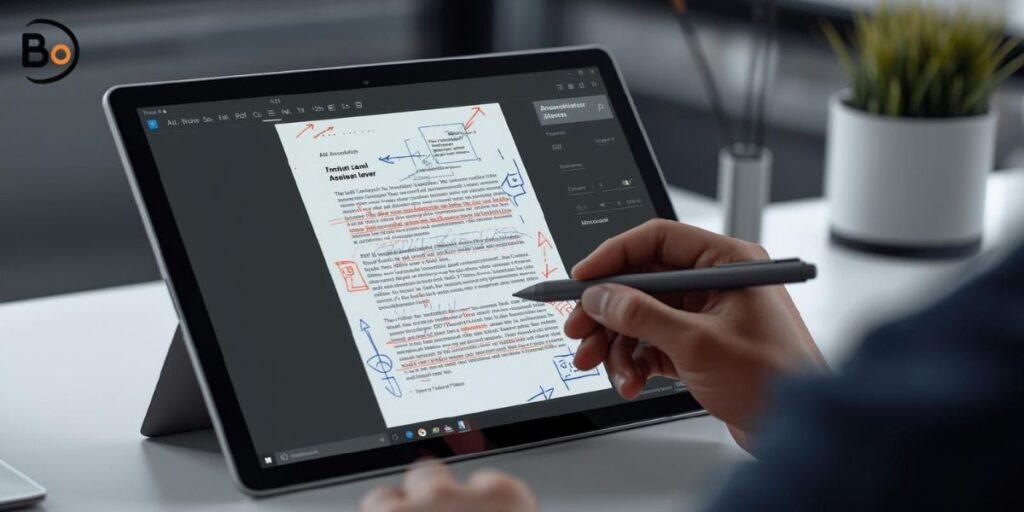
AxelaNote (アクセラノート) is a Windows PDF/image annotation tool by TransRecog that lets you write on documents—including many print-restricted or comment-restricted PDFs—using a transparent overlay layer so the original file isn’t modified.
What Is AxelaNote?
AxelaNote is best understood as a non-destructive PDF annotation and image markup application for Windows 10 and Windows 11. Instead of embedding comments directly into the PDF, it places your marks—handwriting, highlights, stamps, text, and shapes—on an overlay layer often described as a “transparent sheet” or annotation layer.
That single design choice matters. Many people aren’t trying to “edit” a PDF at all. They simply need to review and mark up a document—contracts, manuals, engineering drawings, training documents, academic PDFs—without changing the underlying file. In practice, AxelaNote is aimed at exactly that job.
If you’ve seen English pages describing “axelanote” as a generic note-taking ecosystem, treat that as noise. The dominant, real-world use is PDF/image markup on Windows, especially when typical PDF editors are blocked by permissions.
Why AxelaNote Matters (And When It’s the Right Tool)
A lot of PDF workflows break at the same point: someone sends a document that’s locked down—commenting disabled, printing disabled, or otherwise restricted. In many teams, that PDF is still the “source of truth,” and nobody wants to risk corrupting formatting or triggering version-control chaos.
AxelaNote matters because it aims to solve common review and compliance problems:
- Document integrity: Your original PDF stays unchanged, reducing the chance of layout shifts and “which version is correct?” confusion.
- Review workflows: Legal, engineering, and education teams often need fast markup without a heavy editing toolchain.
- Paperless + telework: Remote reviews are smoother when everyone can annotate safely and export a shareable result.
- Pen/touch usability: If you work on a Surface or use a stylus (including devices like Wacom), handwriting and quick marks feel natural.
When AxelaNote is not the right tool
AxelaNote is not meant to replace a full PDF editor in every scenario. You may want a different approach if you must:
- Edit the underlying PDF text (rewrite paragraphs, change embedded content, replace images).
- Create complex interactive forms or redaction workflows.
- Rely on deep collaboration features like cloud-based commenting threads, role permissions, and granular audit trails.
In short: AxelaNote shines when you need markup, not deep editing.
Who AxelaNote Is For
AxelaNote supports both B2C and B2B needs, which is why the intent behind “AxelaNote” searches is often mixed.
B2C / Individual use cases
- Students annotating lecture PDFs and research papers
- Home users filling in or marking up PDFs they can’t comment on
- Creators and freelancers reviewing client documents without altering originals
B2B / Team and organizational use cases
- Legal and compliance teams reviewing policies, contracts, discovery packets
- Engineering teams marking drawings or spec documents
- Education and corporate training teams annotating course PDFs and manuals
- Procurement and operations teams reviewing vendor docs, SOPs, and checklists
For organizations, AxelaNote also fits procurement-style needs such as enterprise purchase through resellers/distributors and restricted environments.
How AxelaNote Works: Overlay Layer + AXL File
The core concept is simple: AxelaNote keeps annotations separate from the original document. That separation is usually managed through an AXL file, which you can think of as a dedicated “annotation layer format.”
What is an AXL file?
An AXL file is a saved layer that stores your markup—pen strokes, highlights, stamps, text notes, and other annotations—so you can reopen the original document later and see your annotations re-applied without modifying the source file.
This is a major reason AxelaNote helps in restricted-PDF scenarios. Since the software isn’t trying to write native PDF comments into the original file, it can often allow annotation in cases where traditional PDF tools refuse.
Overlay annotation vs native PDF commenting
Here’s the practical difference:
- Native PDF comments: Stored inside the PDF, subject to permissions and compatibility issues.
- Overlay annotation layer: Stored separately, then combined for viewing/export.
If you’ve ever worried, “Will this break my PDF formatting?” the overlay approach is designed to reduce that risk.
Supported Formats and Typical Environment
AxelaNote is built for Windows workflows and supports working with PDFs and common image formats such as:
- JPEG, PNG
- TIFF, BMP
Many professional use cases involve scanning or exporting documents as images; AxelaNote covers those too.
For compatibility, the common concerns users check first are:
- Windows 10 / Windows 11 support
- Requirements such as .NET Framework
- Input methods: mouse, touch, stylus/pen input
- Reader workflow integration (many teams keep Adobe Acrobat Reader as their default viewer)
How to Annotate a Protected PDF on Windows Using AxelaNote
If your PDF is “comment disabled” or “print disabled,” the goal is to mark it up for review without unlocking or altering the original.
Step-by-step workflow
- Open the PDF in AxelaNote (or open it through your normal Windows workflow if AxelaNote is set to handle the file type).
- Confirm you’re in annotation mode, not edit mode (AxelaNote is designed for markup).
- Choose your tool: pen/stylus, highlighter, text, stamp, or shape.
- Write or mark directly on the document using mouse, touch, or pen input.
- Save your work as an AXL file so your annotations remain separate.
- When you’re ready to share, export to a new output file (PDF or image) that includes the overlay.
- If needed for reporting, output annotation text to CSV (useful for review logs and structured handoffs).
Read Also:- Gastroshiza Explained: Meaning, Diagnosis, Surgery, NICU Timeline, and Long-Term Outlook
Practical example: compliance review
A compliance manager receives a policy PDF with commenting disabled. They use AxelaNote to highlight sections that conflict with the new regulation, add notes, stamp “Needs Update,” then export a combined PDF for the policy owner. The original remains unchanged for audit clarity.
Exporting: Output PDF/Image and CSV Extraction
Export is where AxelaNote becomes “deliverable-friendly” for teams.
Export options you’ll see in real workflows
- Export to a new PDF that visually includes your overlay annotations
- Export to image (useful for slides, chat tools, or quick sharing)
- CSV extraction for annotation lists or text notes (useful for tracking, QA, and structured review processes)
Example: engineering drawing markup
An engineer marks up a drawing PDF with a stylus, using arrows, circles, and short notes. They export an annotated PDF for the design team and export a CSV list of notes for tracking changes in a ticket system.
Compliance and “Is This Legal?” Guidance
Many users searching “write on protected PDF AxelaNote” are really asking a compliance question: “Am I bypassing restrictions?”
A safe, practical framing is:
- AxelaNote is positioned as not cracking or unlocking documents.
- It uses a separate overlay/annotation layer so the original isn’t modified.
- You should still respect document rights, licensing terms, and your organization’s policies, especially for sensitive, confidential, or third-party documents.
If you’re in a regulated industry, document your review process. Use exports and stored layers consistently so the review trail is clear.
Pricing, Trial, and Purchasing (What to Expect in the USA)
Most users want a quick answer: is it free, what’s the trial, and how does buying work?
- Free trial: A 14-day trial is commonly referenced for AxelaNote availability.
- Paid plans: Official pricing may be shown in Japanese yen on some sources (for example monthly and yearly subscription figures). For a USA audience, treat pricing as region-dependent and check the current plan display in your market.
- Enterprise purchase: Businesses may be able to purchase via resellers/distributors, which matters for procurement and invoice-based buying.
If you’re buying for a team, your decision should be based on how many users need pen/touch markup, how often you encounter restricted PDFs, and whether you need offline environments.
AxelaNote vs Adobe Acrobat vs Drawboard PDF vs PDF Annotator
People don’t compare these tools by brand loyalty. They compare by job-to-be-done: “Can I mark up the documents I receive without breaking anything, and can I share the result?”
Quick decision table
| Feature / Need | AxelaNote | Adobe Acrobat (Editor/Reader ecosystem) | Drawboard PDF | PDF Annotator |
|---|---|---|---|---|
| Non-destructive overlay layer | Strong fit | Usually embeds comments in PDF | Primarily PDF-based markup | Primarily PDF-based markup |
| Works well with restricted PDFs (common review scenarios) | Often a key reason to choose it | Can be blocked by permissions | Varies by document permissions | Varies by document permissions |
| Pen/touch-first Windows workflow | Strong fit | Possible, but heavier | Strong fit on pen devices | Strong fit for handwriting |
| Export annotated output | Yes (PDF/image) | Yes | Yes | Yes |
| Structured export like CSV for notes | Yes (useful for review logs) | Possible via workflows, not typical | Not typical | Not typical |
| Best when you need true PDF editing | Not the goal | Strong | Limited | Limited |
Which should you choose?
Choose AxelaNote if your priority is annotating restricted PDFs without changing the original and you value a transparent overlay workflow.
Choose Adobe Acrobat if you need full editing, advanced document tools, forms, redaction, or deep enterprise integrations.
Choose Drawboard PDF or PDF Annotator if your use is mostly handwriting and markup on standard PDFs and you want a pen-first toolset—especially when restrictions aren’t your main problem.
Best Practices for Using AxelaNote Effectively
A tool doesn’t fix messy workflows on its own. These habits make AxelaNote much more useful.
Create a clean annotation system
- Name your AXL layers consistently (project-date-reviewer).
- Keep one AXL layer per review cycle to avoid confusion.
- Use stamps for status (Approved, Needs Update, Question).
- Keep notes short and actionable.
Protect collaboration clarity
- Export a combined PDF for recipients who don’t use AxelaNote.
- Save the original PDF unchanged as the reference baseline.
- When working in a team, store the original + AXL + exported output in the same folder structure.
Avoid the most common mistakes
- Don’t assume the overlay equals text editing. It’s markup, not rewriting.
- Don’t mix multiple reviewers’ notes into one layer without naming standards.
- Don’t skip exports if stakeholders can’t open the overlay layer.
Common Questions Users Ask While Evaluating AxelaNote
A lot of “Is it worth it?” comes down to practical details.
Does AxelaNote require Acrobat Reader?
In many Windows environments, Acrobat Reader remains the default PDF viewer. AxelaNote can fit alongside that workflow, but the key question is whether AxelaNote is handling annotation and export while Reader remains the baseline viewer. If your team lives inside Reader, test the handoff flow: open → annotate → export.
Will my annotations be visible when sharing the original PDF?
If you share the original PDF, your annotations won’t appear because they’re kept separate in an overlay/AXL approach. If you share an exported annotated PDF/image, the annotations will be visible.
What about offline environments?
If your organization has restricted networks, check whether your licensing and activation method supports offline use and how updates are handled.
FAQs
1) What is AxelaNote used for?
AxelaNote is used to annotate PDFs and images on Windows using a transparent overlay layer, allowing markup without modifying the original document.
2) Can AxelaNote write on a protected PDF that doesn’t allow comments?
It’s often chosen specifically for cases where PDFs are comment-restricted or print-restricted, since it can apply annotations via a separate overlay rather than embedding native PDF comments.
3) What is an AXL file in AxelaNote?
An AXL file stores your annotations as a separate layer—pen strokes, highlights, stamps, and notes—so you can reopen the original PDF and see your markup without altering the source file.
4) Can I export AxelaNote annotations to a new PDF?
Yes. A common workflow is exporting a new output PDF (or image) that visually includes the overlay annotations so recipients can see the markup without needing your layer file.
5) Can AxelaNote export notes to CSV?
Yes. CSV output is useful when you want a structured list of annotation text for tracking, QA reviews, or turning comments into tasks.
6) Does AxelaNote work with stylus and touch input?
AxelaNote is designed for Windows workflows and supports pen input, touch, and mouse—useful on devices like Microsoft Surface and setups using stylus hardware.
7) Is it legal to annotate a print-restricted or comment-restricted PDF?
AxelaNote is positioned around overlay-based markup rather than “unlocking” PDFs, but you should still respect document rights, licensing terms, and your organization’s policies—especially in regulated environments.
8) Is AxelaNote free?
AxelaNote is commonly offered with a limited trial (often 14 days). Paid pricing can vary by region and plan, so check the current pricing details available in your market.
Conclusion
AxelaNote (アクセラノート) is built for a very specific, very common pain point: you need to mark up PDFs or images on Windows—often including restricted PDFs—without risking formatting issues or altering the original file. Its transparent overlay layer and AXL-based workflow make it a strong fit for compliance reviews, engineering markups, education, corporate training, and paperless remote work. If your main need is annotation and shareable exports, it’s worth testing in your real workflow during the trial period.